
New: Check Your Wiring Against Your Schematic
You've drawn the schematic and built the circuit on a breadboard in the Layout view. But does the breadboard actually match the schematic? Circuit Canvas can now tell you.
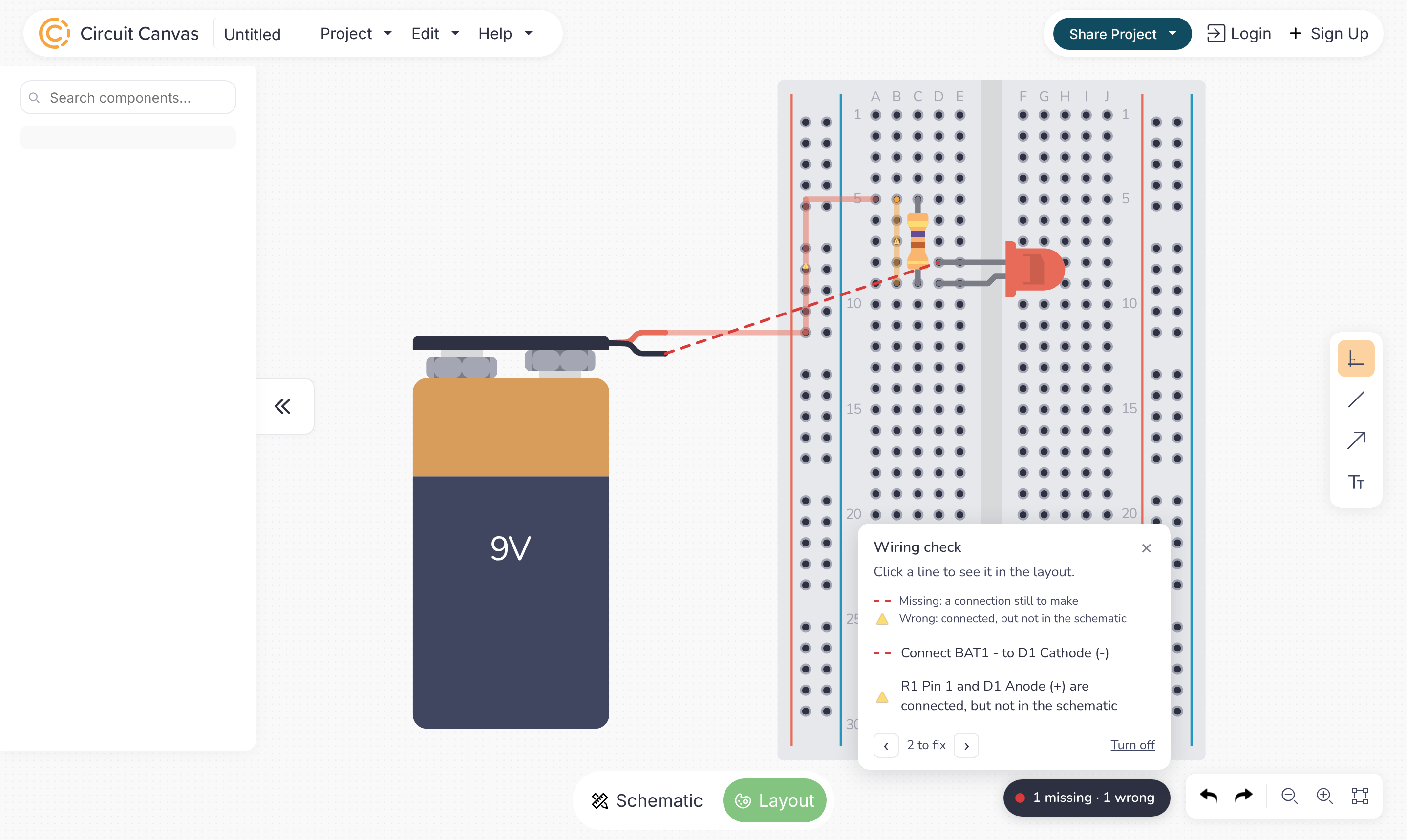
What it does
The wiring check compares your layout with your schematic, connection by connection, and tells you two things:
- Missing connections: something the schematic connects that isn't connected in the layout yet. These show as dashed red lines between the two points that need a wire.
- Wrong connections: something connected in the layout that the schematic doesn't connect. These wires are dimmed and marked with a yellow warning sign.
When everything is right, it says so: "Wiring matches the schematic".
How to use it
-
Open your circuit and click Check wiring at the bottom right of the editor (or choose Project > Check Wiring).

-
The button now shows the result, for example "1 missing · 1 wrong", and a list opens that describes each problem in plain words, such as "Connect BAT1 - to D1 Cathode (-)".
-
Click a problem in the list to jump to it in the layout. Use the arrows to step through them one by one.

-
Fix the wiring. The count updates as you work, and the button turns green when the layout matches the schematic.

-
Click Turn off in the list when you're done.
Good to know
- The check works for circuits where the schematic and layout are linked, which is how every new circuit starts. If you unlinked yours, you can re-link it in Project > Edit Details.
- You can leave the check on while you build. It follows every change you make.
Want to try it on a circuit someone else made? Pick one from the community circuits, make your own copy and turn the check on.